This needs the Pro or Custom plan. See plans and billing
On Pro and Custom, AI can draft what you write to travellers: the note when you accept or decline a booking request, a reply on a request, and a reply to an enquiry. It puts the draft in the box for you to check. Nothing is sent until you click the button that sends it.
Draft an acceptance or a decline
- In your dashboard, click Requests.
- Click the request.
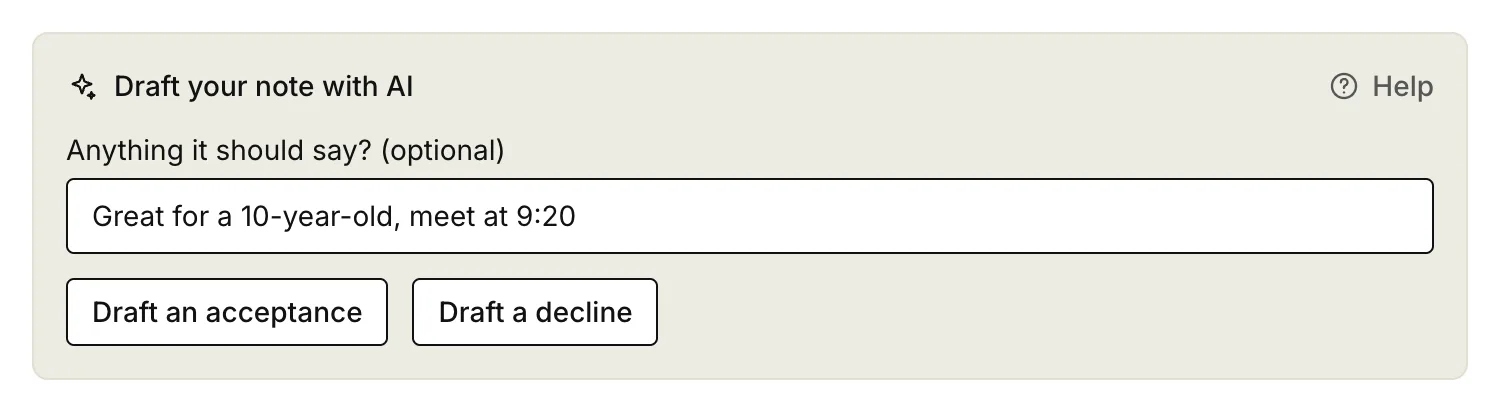
- In Draft your note with AI, under Anything it should say? (optional), type what the note must include. For example, “meet 10 minutes early”, or “fully booked that day, the 14th is free”.
- Click Draft an acceptance or Draft a decline.
- Wait a few seconds. The draft goes into Note to followed by the traveller’s name.
- Read it and change anything that isn’t right. To put back what was in the box before, click Undo.
- Click Accept or Decline.
Click the button that matches your draft. A decline note sent with Accept would confuse the traveller.
Telling it what to say
The AI writes from:
- the request: the date, the group size and the traveller’s message
- the tour’s details, like the meeting point and what’s included, and its FAQs
- the latest messages in the conversation on the request page
- what you type under Anything it should say?
Use your points for anything it can’t know, like another date that’s free or a change to the meeting point. It writes as you, in the first person, and signs off with your name. Our email already greets the traveller and says whether you accepted, so the note doesn’t repeat that.
If the traveller wrote in another language, the note is in their language. If they ask something the tour details don’t answer, the note says you’ll confirm it by email rather than guess. It’s told not to promise discounts, refunds or pick-ups you haven’t mentioned.
AI can get details wrong. Check times, prices and places before you send.
Draft a reply on a request
To answer a question without accepting or declining:
- Open the request.
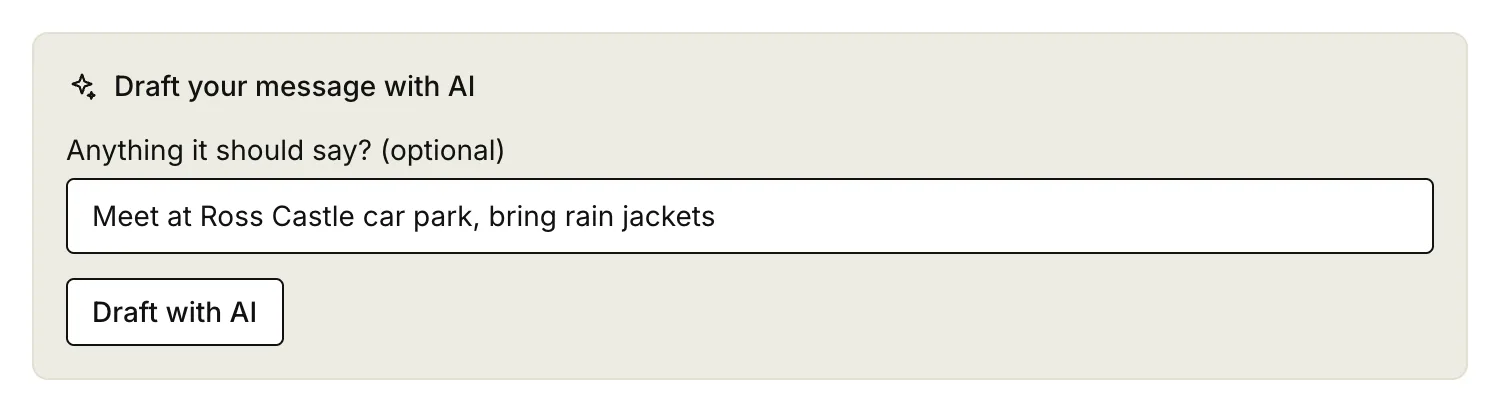
- In Draft your message with AI, type anything the reply should say. This is optional.
- Click Draft with AI.
- Check the draft in Your reply to followed by their name, and change anything that isn’t right.
- Click Send reply.
The draft answers the traveller’s newest message on the request page. A reply that came to your own email isn’t on the page, so the draft won’t know about it.
Draft a reply to an enquiry
Messages from your Contact page and private tour requests are under Enquiries.
- Click Enquiries.
- Click the enquiry.
- Under Draft reply with AI, type anything the reply should say. This is optional.
- Click Draft reply with AI.
- Check the draft in Your reply and change anything that isn’t right.
- Click Send reply.
For an enquiry, the AI reads the traveller’s messages, your live tours and your general FAQs.
Limits
Each business can make up to 20 drafts an hour and 60 a day. If you reach the limit, try again later, or write the note yourself.
Related articles
- Writing with AI Let AI draft your tour page from rough notes, then check and edit it before you save.
- Handle a booking request Accept or decline a traveller's request for a date, and send them a note.
- Reply to, close and find requests Reply to a traveller without accepting or declining, close requests you've dealt with, and find one by its reference.
Still stuck? Contact us
Tell us what you're trying to do and where it went wrong. We reply by email within a working day.
Contact us