Travellers don’t book instantly. From your tour page they send a request for a date and group size, with no payment. You accept or decline it, and they get an email either way.
When a request arrives
We email you the tour, the date, the group size and the traveller’s contact details. The subject starts with “New booking request”. In your dashboard, Requests shows how many new requests are waiting.
In Booking settings, under New requests and messages, you can choose email, WhatsApp, or both. WhatsApp messages are coming soon: until then, we email you whichever you choose. To open Booking settings, click Bookings, then Booking settings.
Answer a request
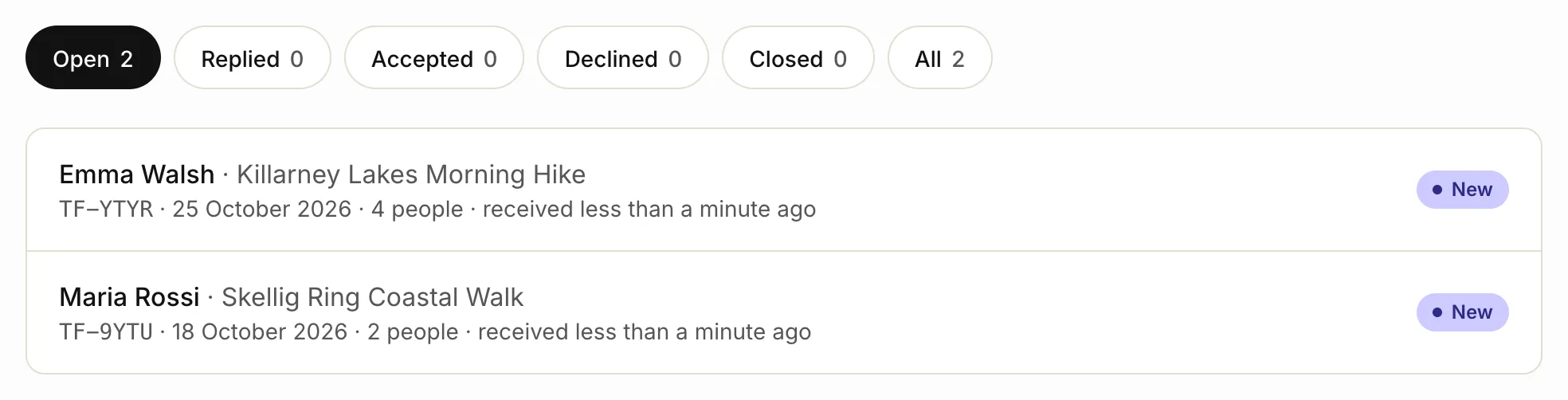
- In your dashboard, click Requests.
- Click the request you want to answer. New requests are listed under Open.
- Check the date, the group size and the traveller’s message.
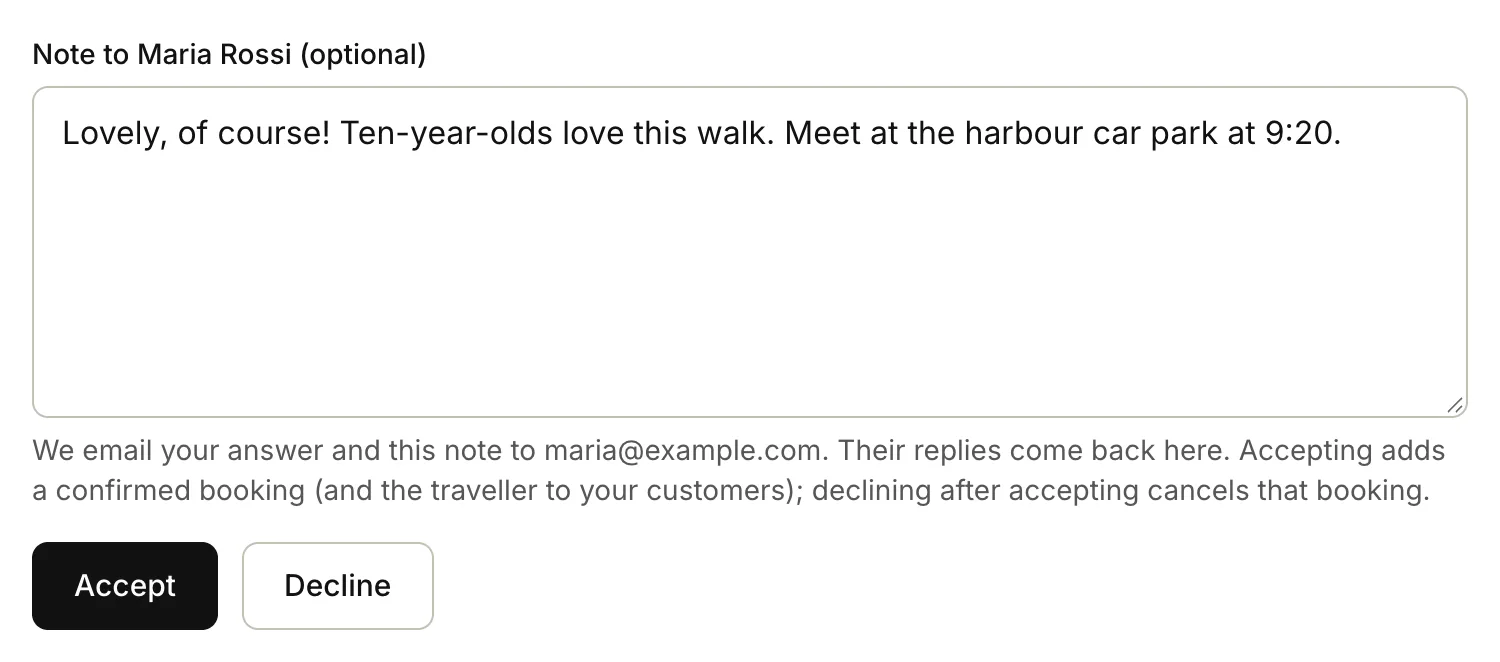
- In Note to followed by their name, write anything they need to know, like where to meet. The note is optional.
- Click Accept or Decline.
What happens next
- Accept: the traveller gets an email with your note and a calendar invite for the day. The request becomes an accepted booking under Bookings, and the traveller is added to Customers. The day after the tour, the booking is marked completed. You get a “Booking confirmed” email with a calendar invite too, for your own calendar.
- Decline: the traveller gets an email with your note and a link to pick another date on your tour page.
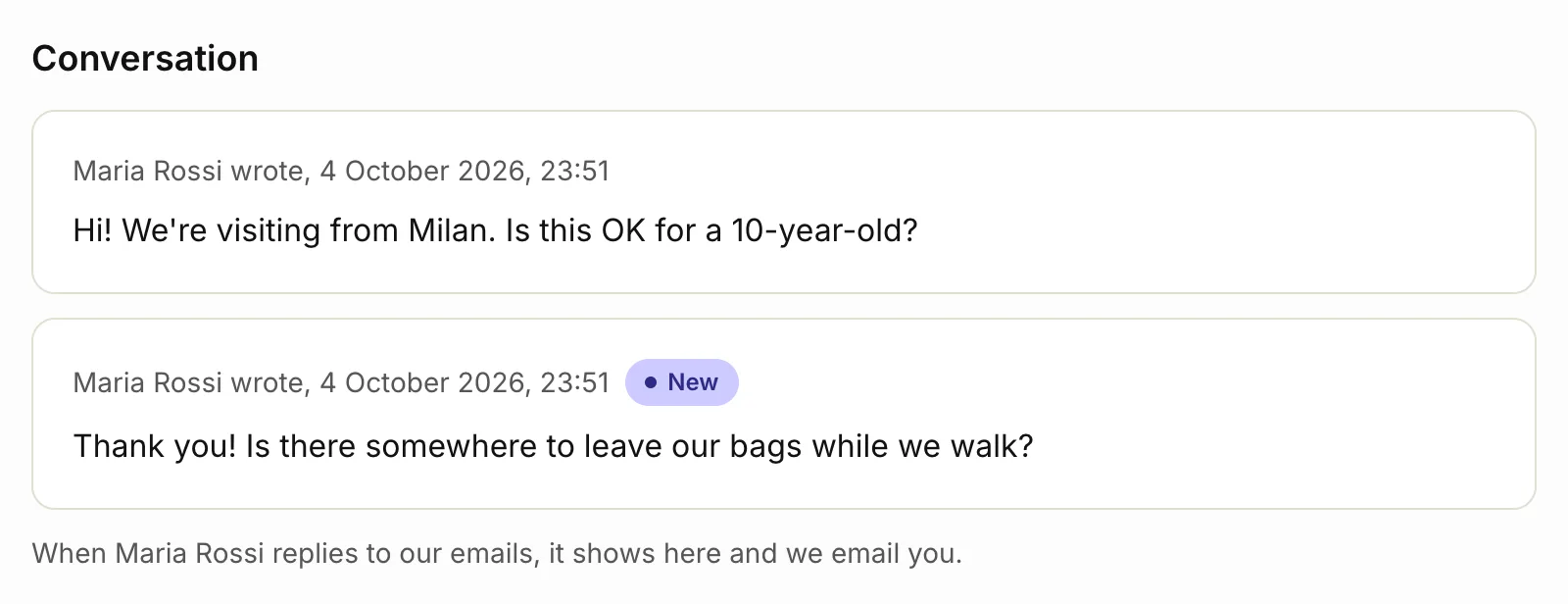
The traveller can reply to any of our emails. Their reply shows on the request page under Conversation, marked New, and we email it to you. Requests in your dashboard counts requests with replies you haven’t read.
You can also reply to our “New booking request” or “New reply” email from the email address you sign in with (or your contact email). Your reply goes to the traveller, and we add it to the conversation too. If we can’t confirm an emailed reply came from you, we don’t send it. We email you to say so, and you can answer from the request page instead.
Reply without answering
To ask a question or share details before you accept or decline, open the request and write under Reply to followed by their name. Click Send reply. We email it to the traveller, and the request is marked Replied and stays open. Their answer comes back to the same conversation. See Reply to, close and find requests.
If our email to a traveller can’t be delivered, the request page tells you. Call or text them instead if they left a phone number.
Change your answer
- Click Requests.
- Click All.
- Click the request.
- Under Change your answer, write a new note if you like.
- Click Accept or Decline.
The traveller gets a new email. If you decline a request you’d accepted, its booking is cancelled.
To record that a guest cancelled, open the booking under Bookings and click The guest cancelled. We email them to confirm, and you get a copy.
On Pro, Draft your note with AI can write the note for you, and Draft with AI under Reply to writes a reply that answers the traveller’s latest message. See Writing with AI.
Trip trends
Tourfect may later keep a few anonymous trip facts from requests and messages (the month, the group size, the places travellers ask about and the kind of tour), never names, emails or messages, to help build its trip planner. This isn’t switched on yet. When it is, you’ll be able to turn it off under Trip trends in Booking settings.
Related articles
- Set your availability and start times Choose the start times travellers can pick, and mark days sold out or not running.
- Reply to, close and find requests Reply to a traveller without accepting or declining, close requests you've dealt with, and find one by its reference.
- Writing with AI Let AI draft your tour page from rough notes, then check and edit it before you save.
- Common questions Quick answers about payments, your site, your tours and reviews from guests.
Still stuck? Contact us
Tell us what you're trying to do and where it went wrong. We reply by email within a working day.
Contact usOr email support@tourfect.ie.