When you sign up, Tourfect takes you through a short guided setup. After that, your dashboard shows a checklist called Set up your site. It stays on your dashboard until every step is done.
Before you start
Confirm your email address. We send you a link when you sign up. Until you click it, visitors to your site see “coming soon”. If you can’t find the email, check your spam folder, or go to Home in your dashboard and click Send the link again.
Finish the guided setup
The guided setup has four steps: your business, your look, your logo and colour, and your first tour. If you left it part way, Home shows Finish setting up your site.
- Go to Home in your dashboard.
- Click Continue setup.
- Fill in the step and click Save and continue. To leave a step for later, click Skip this step.
To stop the guided setup and use the checklist instead, click I’ll do it myself on Home.
Work through the checklist
The checklist shows how much you’ve done, for example “43% complete”. Each step has a button that opens the right page.
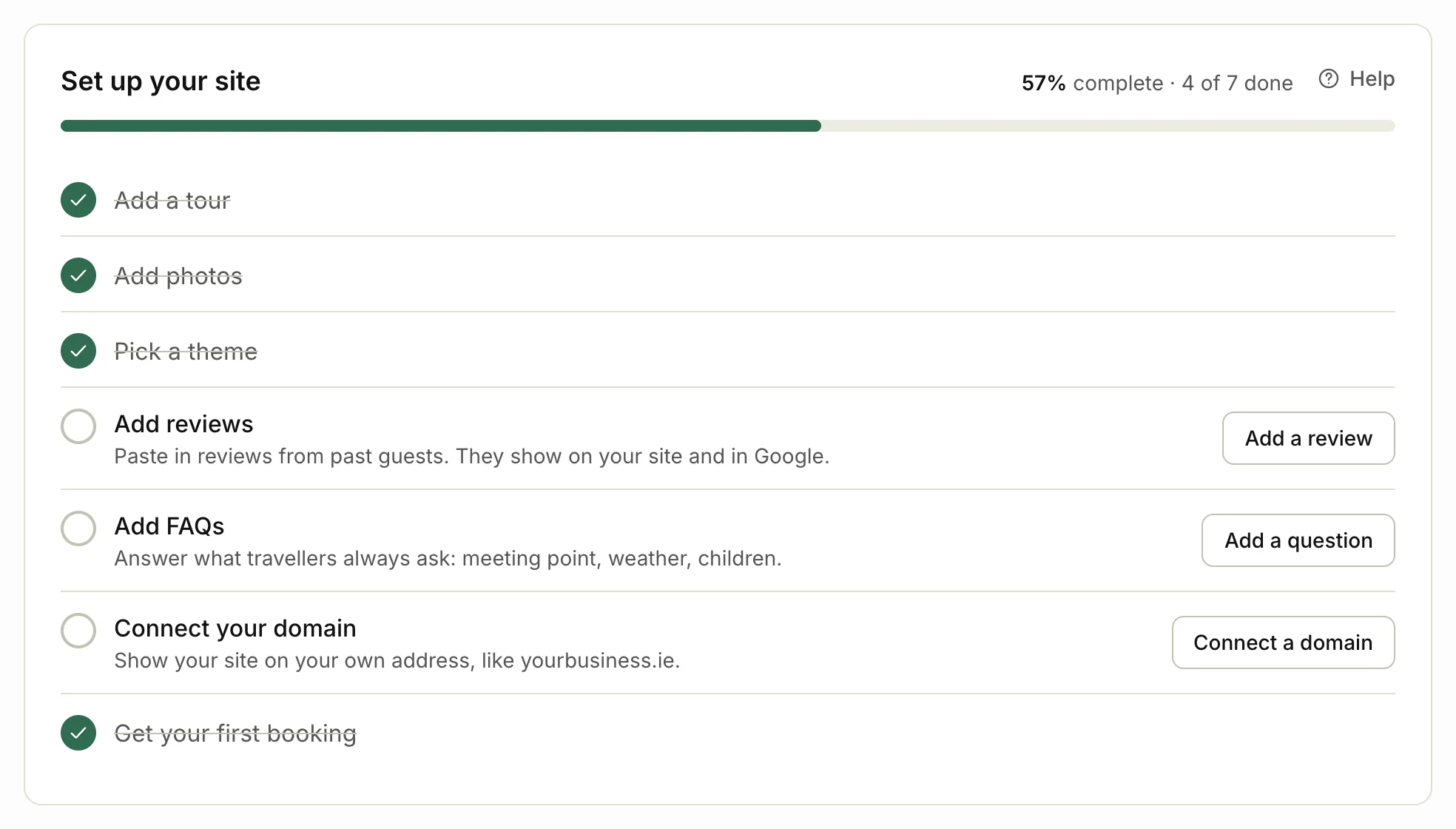
- Go to Home in your dashboard.
- Find the first step without a tick.
- Click the button next to it.
- Finish that task and save it.
- Go back to Home. The step now has a tick.
Ticks appear on their own when the work is done. When every step has a tick, the checklist disappears.
What each step asks for
- Add a tour: a name, a price and what’s included. See Add your first tour.
- Add photos: photos on at least one live tour. Tours with photos get far more requests.
- Pick a theme: how your site looks. Pick a theme opens Branding at Site theme, where you can preview each one.
- Add reviews: reviews from past guests. They show on your site and in Google.
- Add FAQs: answers to what travellers always ask, like the meeting point or what to wear.
- Connect your domain: only on Pro and Custom. See Connect your own domain.
- Get your first booking: share your site’s link with past guests, on social media and in your email signature. View your site opens it.
Related articles
- Add your first tour Add a tour with its price, times and photos, and put it live on your site.
- Set your availability and start times Choose the start times travellers can pick, and mark days sold out or not running.
- Connect your own domain Pro Show your site on your own web address, like yourbusiness.ie, with the DNS records we need.
Still stuck? Contact us
Tell us what you're trying to do and where it went wrong. We reply by email within a working day.
Contact us