Your theme is the layout of your site: the top of your home page, the tour cards, the header and the footer. Your logo, colour and font go on top of it. Your Tourfect address and your own domain show the same site.
You can change your theme any time. It doesn’t change your tours, photos or text.
The themes
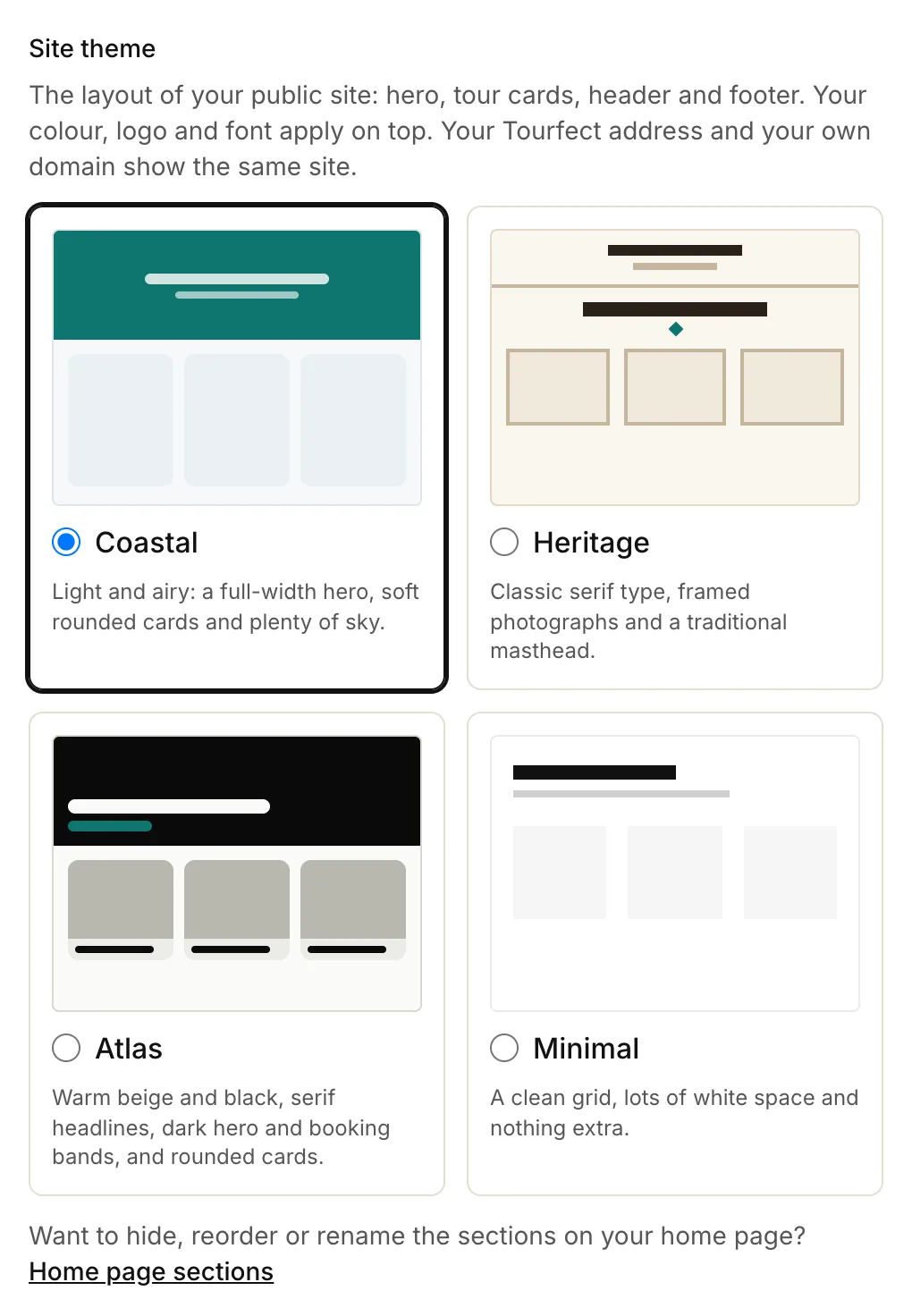
- Coastal: light and airy, with a full-width photo at the top, soft rounded cards and plenty of sky.
- Heritage: classic serif type, framed photographs and a traditional masthead.
- Atlas: warm beige and black, serif headlines, dark bands and rounded cards. It also shows your tagline, the year you started guiding, your languages and your accreditations.
- Minimal: a clean grid, lots of white space and nothing extra.
On Custom, a design built for you shows in this list once it’s ready.
For the tagline, the year and your languages, fill in About your business on Branding. For accreditations, see Accreditations.
Change your theme
- In your dashboard, click Branding.
- Under Site theme, click the theme you want.
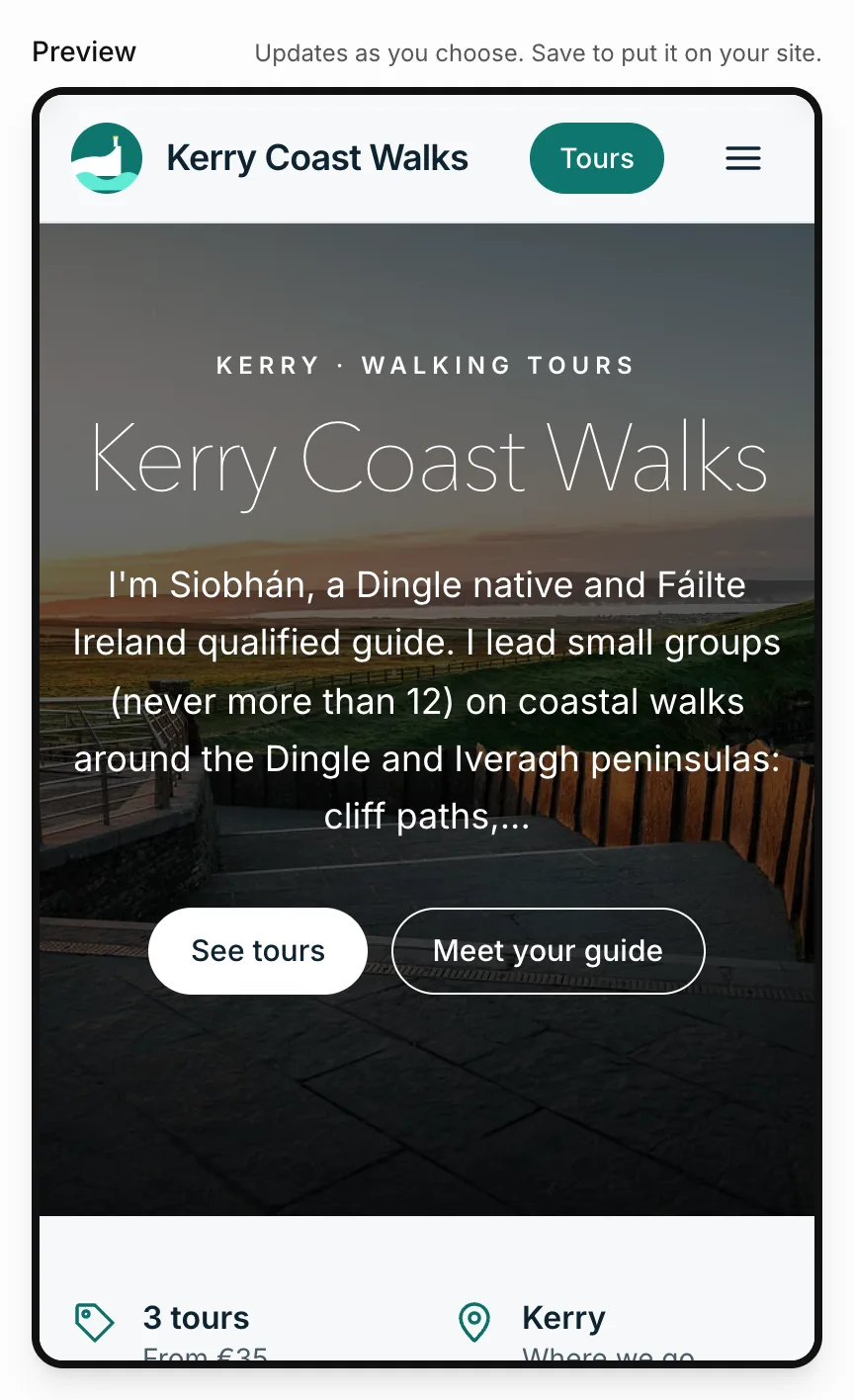
- Check the Preview beside the form. It updates as you choose. On a smaller screen, tap See the preview to scroll down to it.
- Click Save branding.
Your site changes as soon as you save.
The preview
The Preview shows your home page in the theme you picked, with your colour, font and tours. Until you’ve added a tour, it shows example tours so you can see the layout. Try a different brand colour or font in the same way. Nothing changes on your site until you click Save branding.
Your home page sections
Each theme has its own sections on your home page, in its own order. On Pro and Custom you can show, hide, move and rename them. If you’ve set your own layout, it stays when you change theme. See Home page sections.
Related articles
Still stuck? Contact us
Tell us what you're trying to do and where it went wrong. We reply by email within a working day.
Contact us