Your logo, brand colour and fonts go on every page of your site, whichever theme you pick. They’re all on one page in your dashboard: Branding.
Add your logo
- In your dashboard, click Branding.
- Under Logo, choose your logo file. This is your usual logo, for white and pale backgrounds.
- Optional: under Logo for dark backgrounds, choose a white or light version. Themes with a dark header or band use it there. Without it, your usual logo shows there instead.
- Click Save branding.
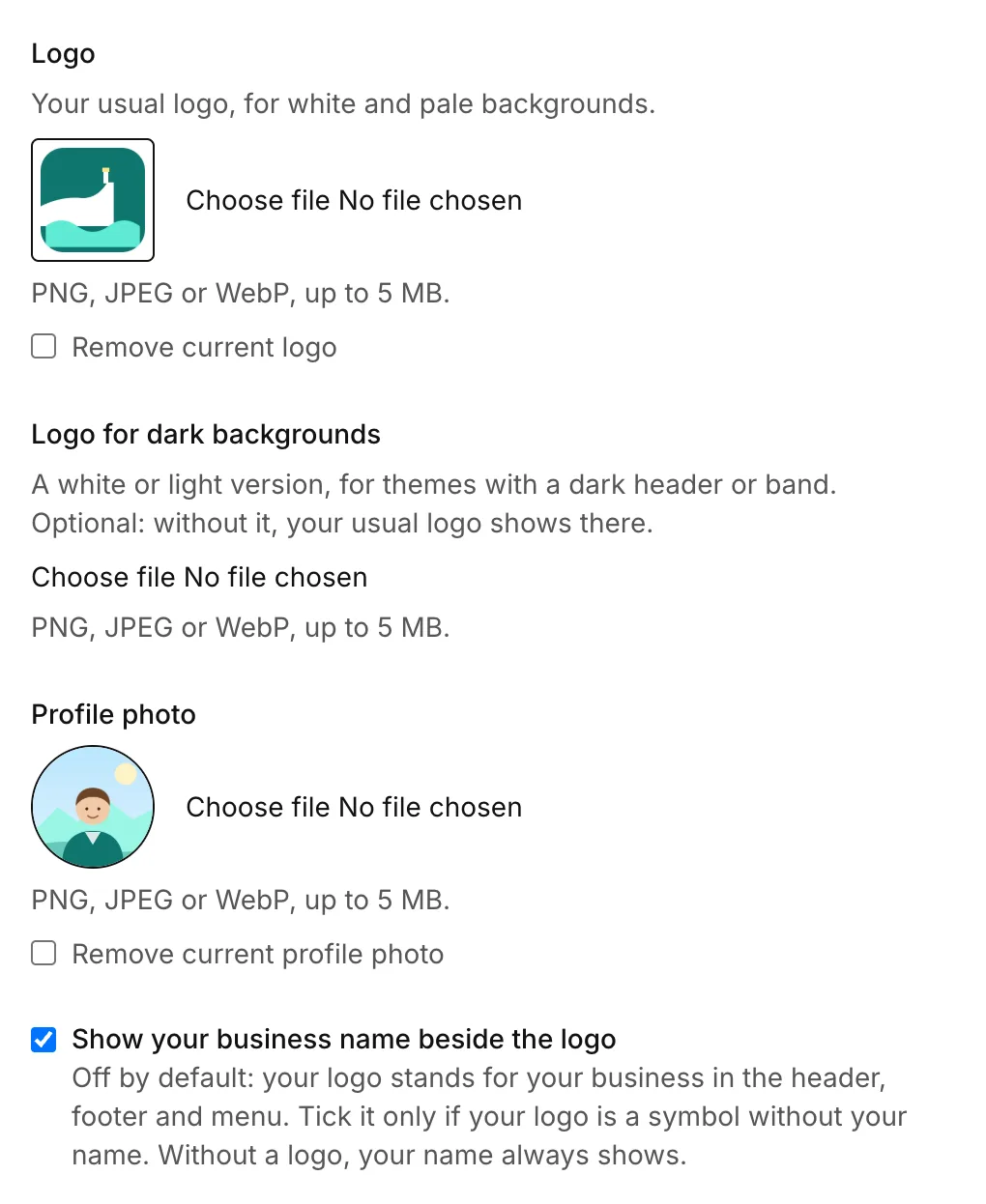
Logos can be PNG, JPEG or WebP files, up to 5 MB each. A PNG with a transparent background suits most themes.
Your logo shows in your site’s header, footer and menu, and at the top of the emails we send travellers for you.
Your name beside the logo
Your logo stands for your business, so your site doesn’t repeat your name beside it. If your logo is a symbol without your name, tick Show your business name beside the logo, then click Save branding. Without a logo, your name always shows.
Change or remove your logo
- To change it, choose a new file under Logo and click Save branding.
- To remove it, tick Remove current logo, then click Save branding.
Choose your brand colour
- Click Branding.
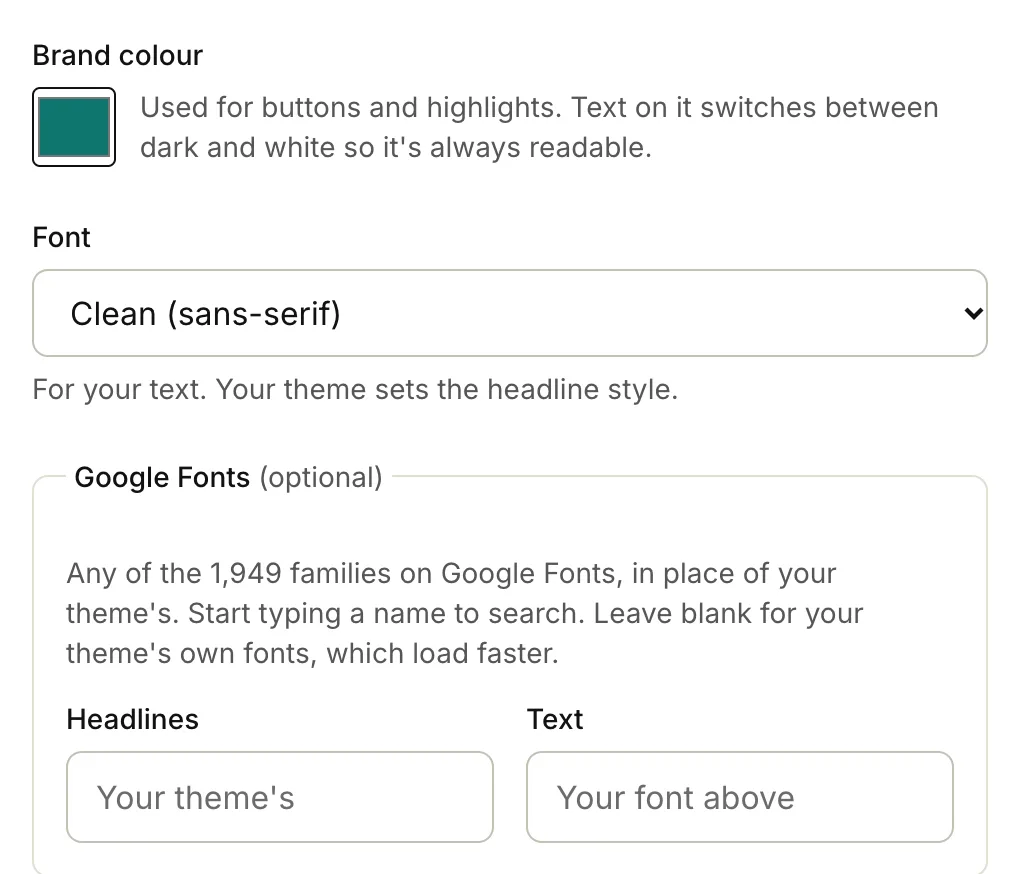
- Under Brand colour, click the colour box and pick your colour.
- Click Save branding.
Your brand colour is used for buttons and highlights. Text on it switches between dark and white, so it’s always readable.
Some themes have colours of their own, like a colour for buttons. If a theme you can pick has them, they’re listed under Brand colour. You can change them while that theme is picked.
Choose your font
- Under Font, choose a style for your text, like Classic (serif) or Friendly (rounded).
- Click Save branding.
Your theme sets the style of your headlines.
Use fonts from Google
For more choice, you can use any family on Google Fonts instead of your theme’s fonts.
- Under Google Fonts, click in Headlines and start typing a family’s name, like “Lora”. Pick it from the list.
- Optional: do the same in Text, for the rest of your words.
- Click Save branding.
Leave both empty to keep your theme’s own fonts, which load faster. When you pick one, your site loads it from Google Fonts.
See it before you save
The Preview beside the form shows your home page with the theme, colours and fonts you’ve chosen, as you choose them. Nothing changes on your site until you click Save branding. A new logo shows in the preview once you’ve saved it.
On a phone, the preview is under the form: tap See the preview.
Your theme is on the same page, under Site theme.
Related articles
- Your setup checklist Work through the checklist on your dashboard to get your site ready for bookings.
- Why choose us Add up to four reasons to book with you, shown as a numbered list on your home page.
- Connect your own domain Pro Show your site on your own web address, like yourbusiness.ie, with the DNS records we need.
Still stuck? Contact us
Tell us what you're trying to do and where it went wrong. We reply by email within a working day.
Contact us